※This article was originally published on the Japanese media outlet “LevelUp Logy” and has been translated using AI. Therefore, some expressions may not be entirely accurate, and we appreciate your understanding. In addition, the images and videos are the same as those used in the Japanese version, so any text shown within them is in Japanese.
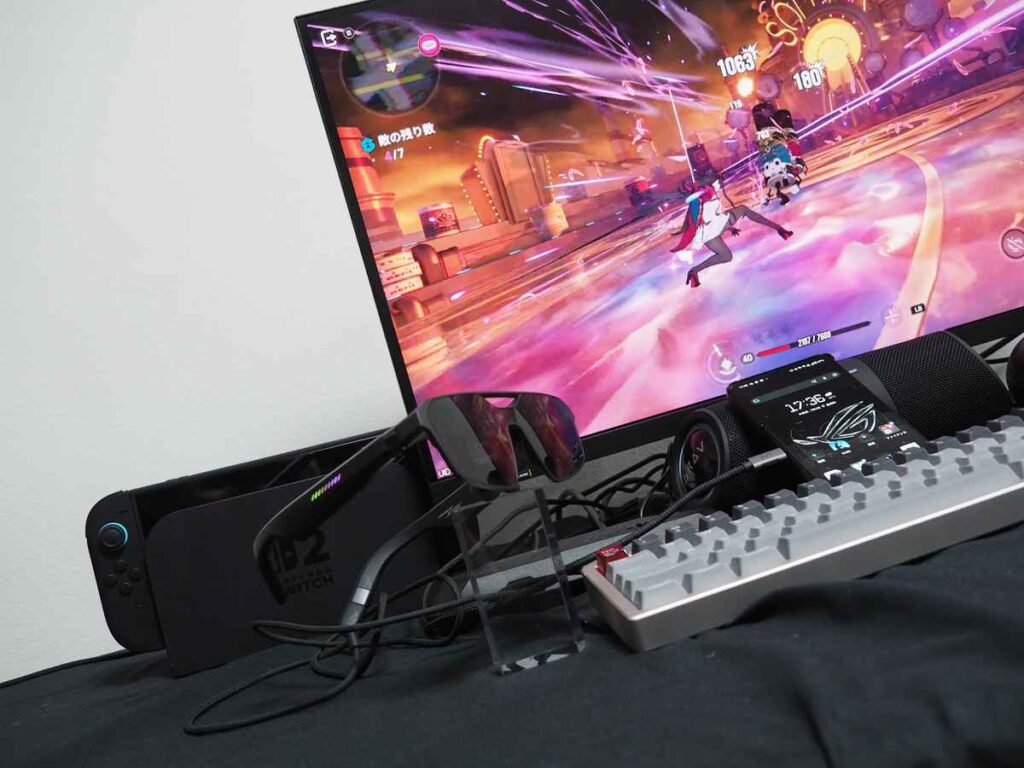
XREAL’s ROG XREAL R1 is a pair of gaming glasses co-developed with ASUS’s ROG brand. It was announced during “CES 2026 ROG — Dare to Innovate,” a virtual launch event held at CES 2026 in January 2026. Pre-orders have already begun in Japan, with shipments scheduled to start on July 14.
I had the opportunity to spend some time with the ROG XREAL R1, so in this article, I’ll take a detailed look at what it can do based on my hands-on experience.
A Stylish Design with a Distinctly Gaming-Inspired Look
First, let’s take a look at the core specifications of the ROG XREAL R1. It features Micro-OLED displays that support refresh rates of up to 240Hz at Full HD resolution (1920 × 1080). Its 57-degree field of view matches that of XREAL’s high-end AR glasses, the XREAL One Pro.
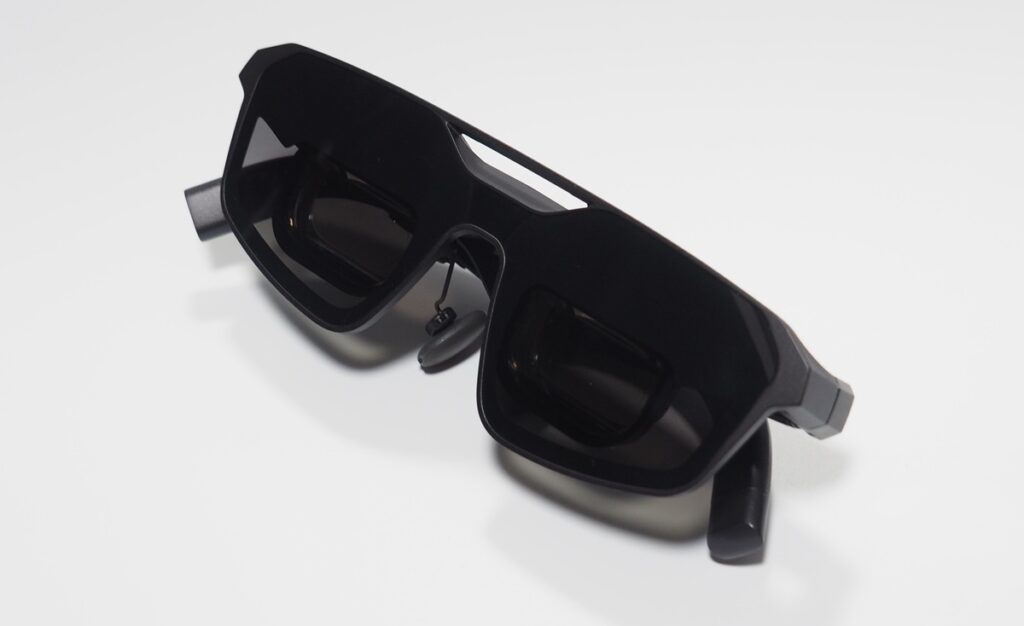
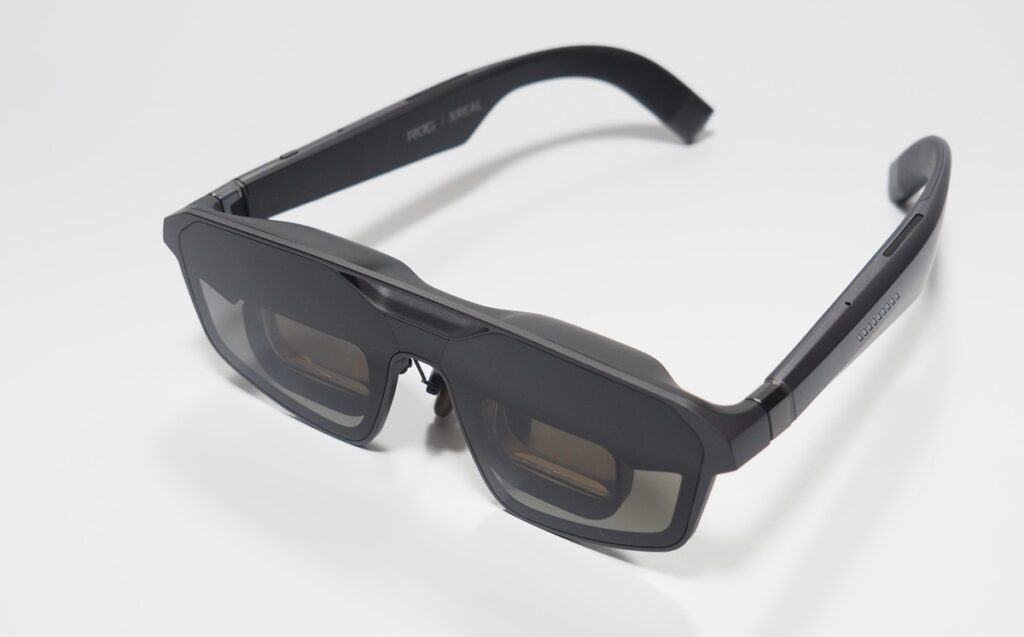
Its competitor, VITURE’s XR glasses, the VITURE Luma Ultra, offer a 52-degree field of view, making the ROG XREAL R1’s 57-degree field of view among the widest currently available for AR glasses. With a response time of just 0.01ms, it is on par with high-performance OLED gaming monitors. XREAL states that the glasses can display a virtual screen equivalent to a 171-inch display viewed from 4 meters away.
The ROG XREAL R1 also supports 3DoF tracking, detecting vertical and horizontal movement as well as tilt. It offers a Follow Mode, in which the screen moves with the user’s head, and a Spatial Anchor Mode, which keeps the screen fixed in a specific location.
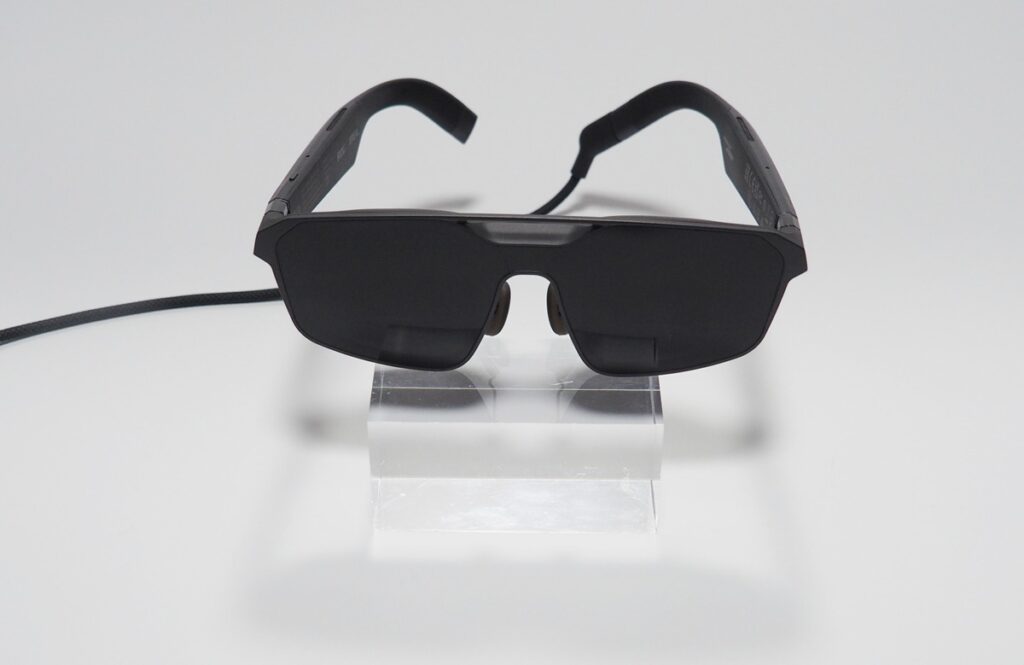
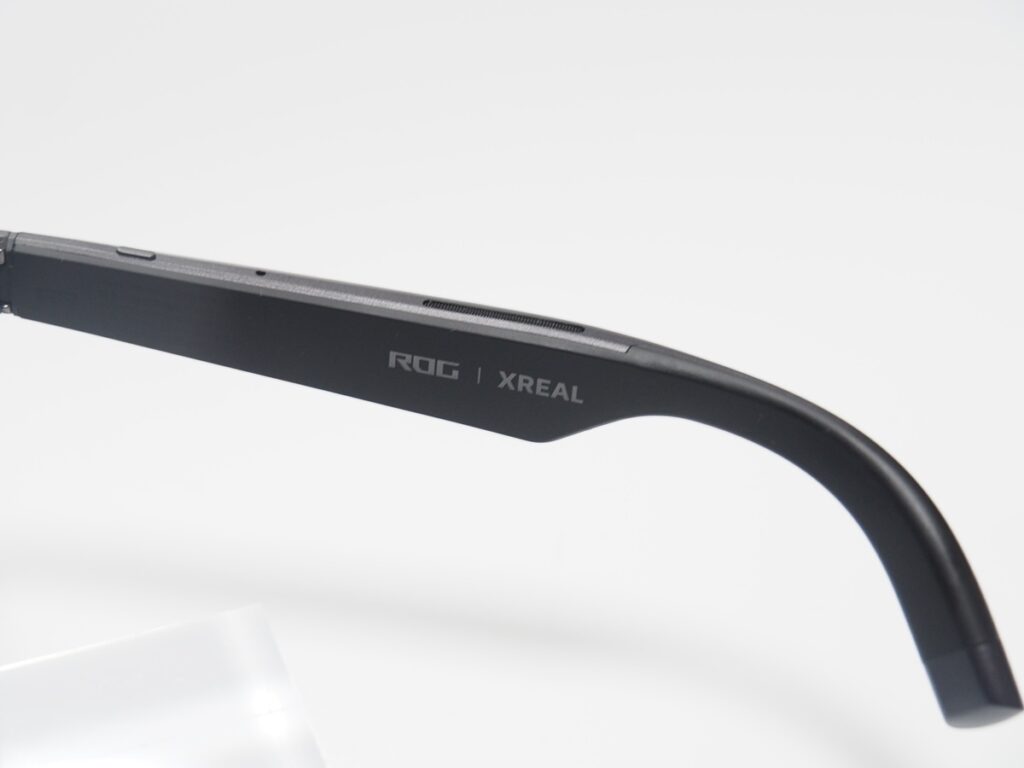
The shape of the glasses’ temples and temple tips closely resembles that of the XREAL One Pro. However, the outer sides of the temples feature RGB LEDs and the ROG logo. The upper portions of the rims are connected above the bridge, providing a solid structure. With their slightly sharper rim shape, the glasses have been refined into a stylish design that feels distinctly purpose-built for gaming rather than everyday wear.
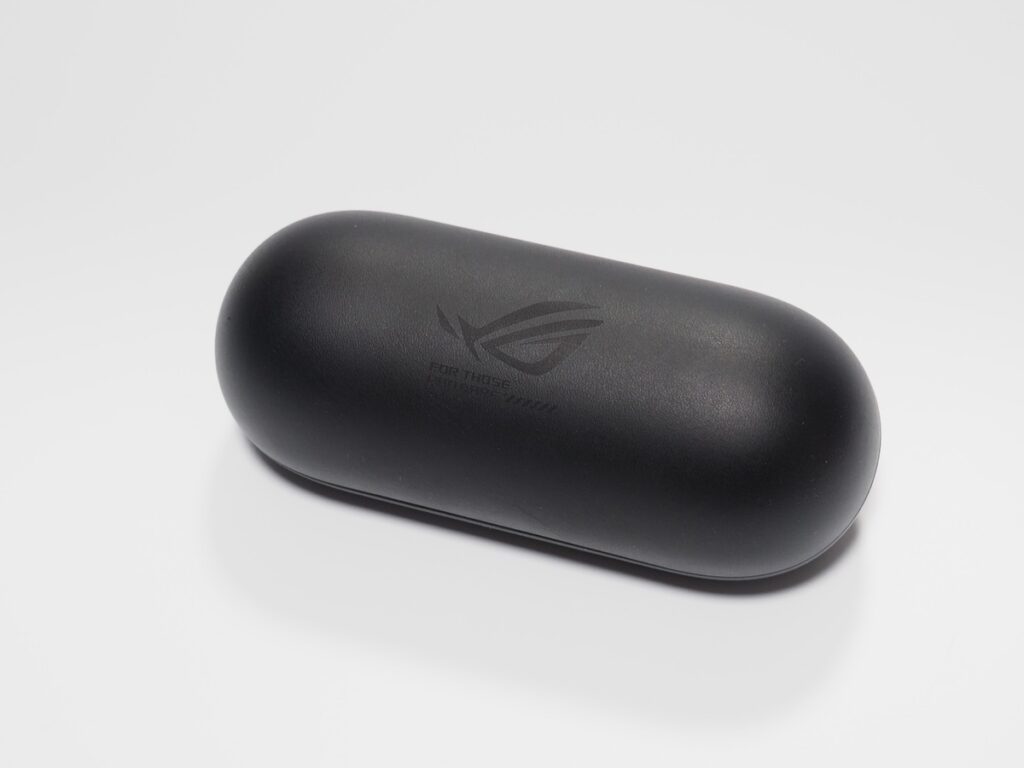
The glasses also come with an oval-shaped case with a matte finish, providing solid protection while carrying them in a bag.
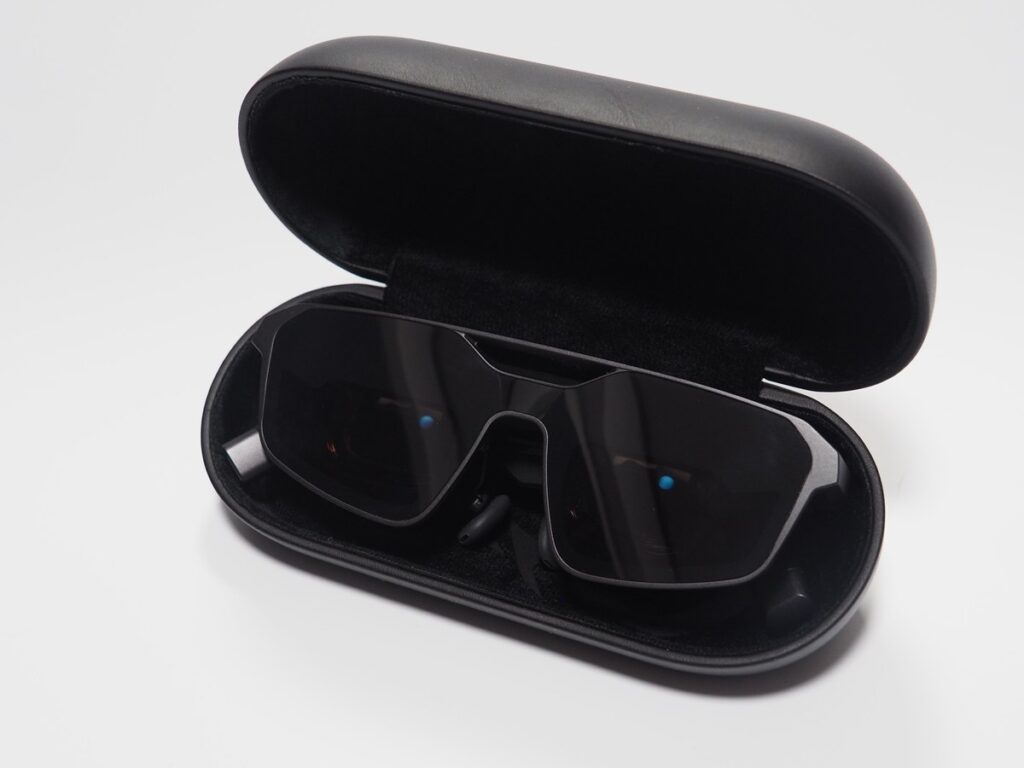
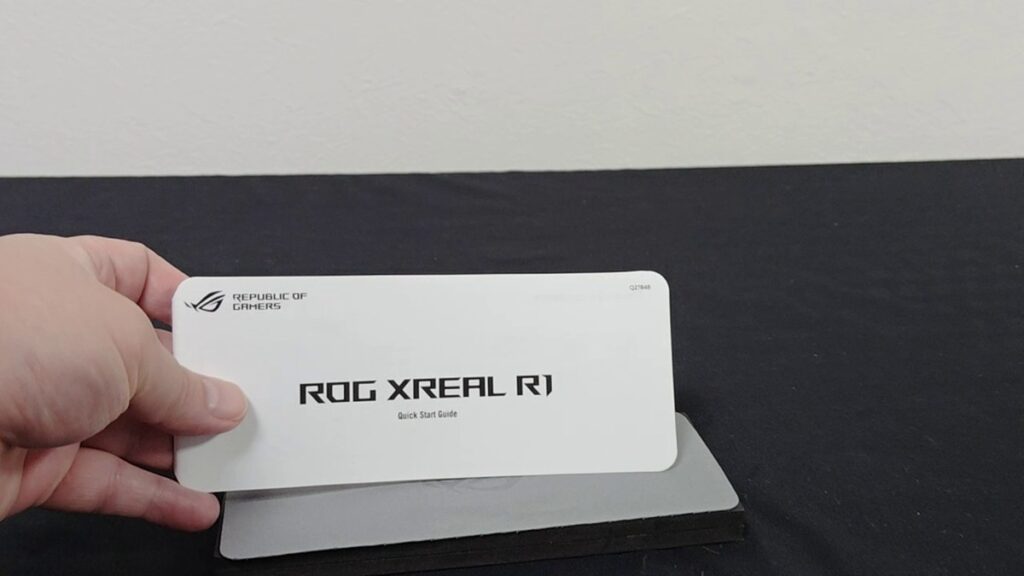
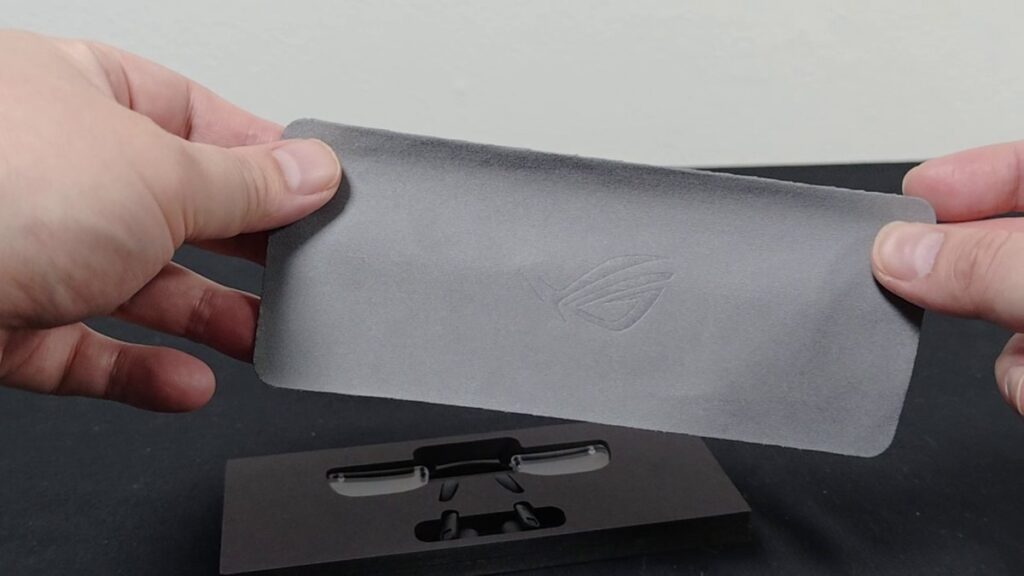
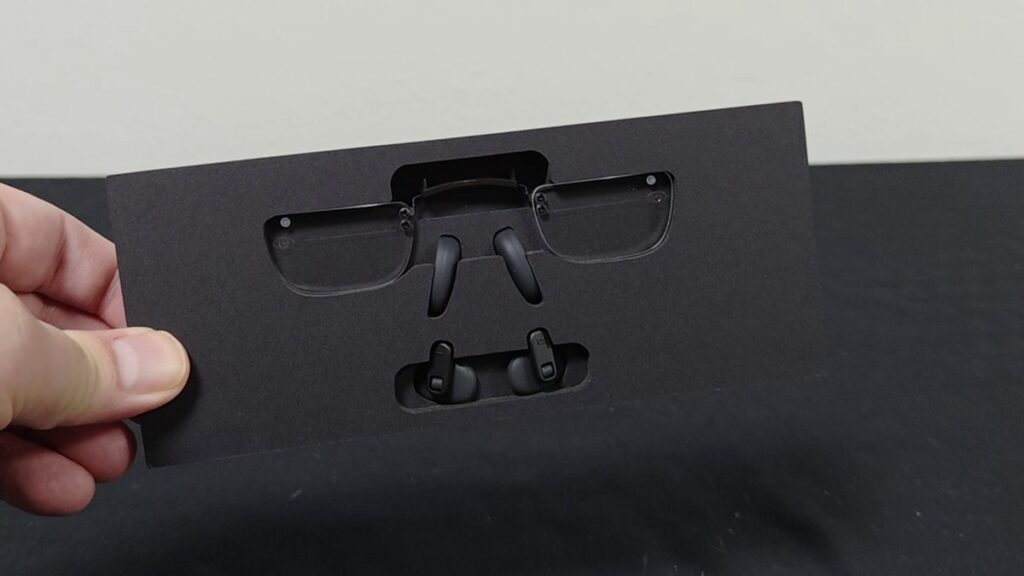
Inside the retail box, the glasses were packaged in a separate inner box. Beneath it were the ROG Control Dock, discussed later, along with the included cables. The glasses box also contained a Quick Start Guide (QSG), a cleaning cloth, a prescription lens frame, and nose pads.
| ROG XREAL R1: Key Specifications | |
|---|---|
| Panel | Sony Micro OLED (0.55-inch) |
| Resolution | 1920 × 1080 pixels |
| Refresh Rate | 120Hz (240Hz with Frame Rate Boost) |
| Response Time | 0.01ms |
| Motion-to-Photon Latency | 3ms |
| Brightness | 700 nits |
| sRGB Coverage | 106% |
| Virtual Screen Size | Up to 171 inches (at 4m) |
| Tracking | 3DoF |
| Glasses Dimensions | 15.3 × 4.9 × 16.6cm |
| Glasses Weight | 90g |
| Interfaces (Dock) | USB Type-C (front, DP Alt Mode), USB Type-C (DC-in/5V), USB Type-C (Data + Power), DisplayPort, HDMI × 2 |
| Dock Dimensions | 21.5 × 2.5 × 10cm |
| Dock Weight | 0.23kg |
| IPD | Medium: 57–66mm; Large: 66–75mm |
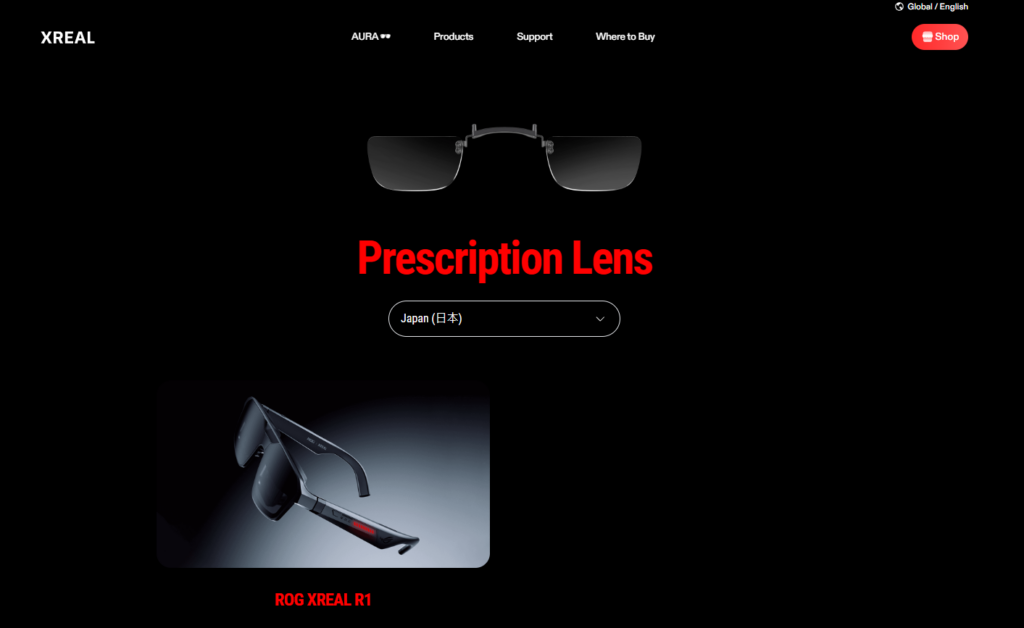
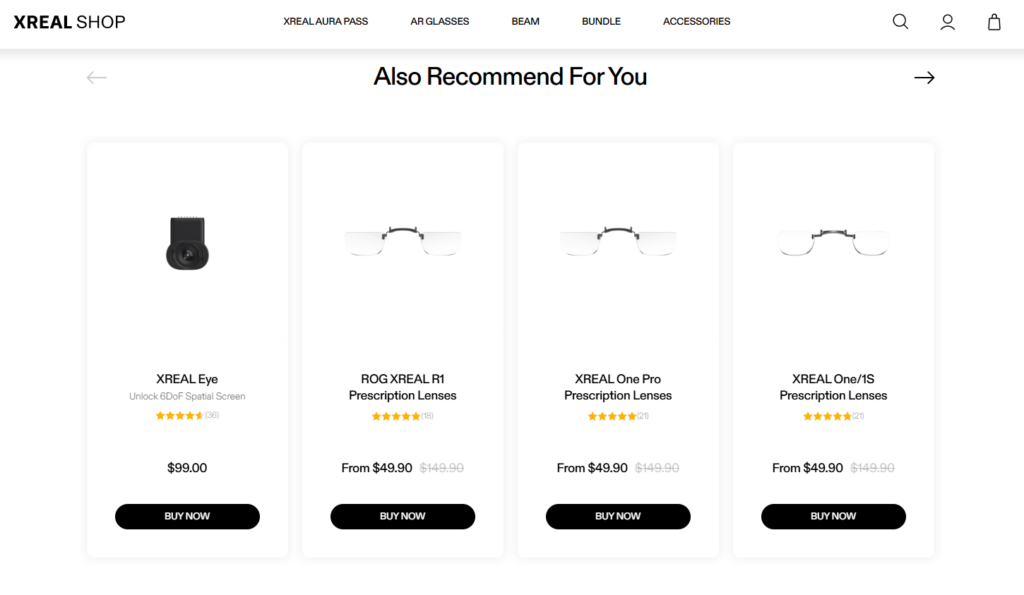
As an aside, a Japanese-language manual was not available online at the time of writing. However, scanning the QR code on the prescription-lens page of the English manual redirected me to XREAL’s guide to prescription lenses. From there, I was able to open the store page for prescription lenses for the ROG XREAL R1, although it remains unclear whether they can actually be purchased from Japan.
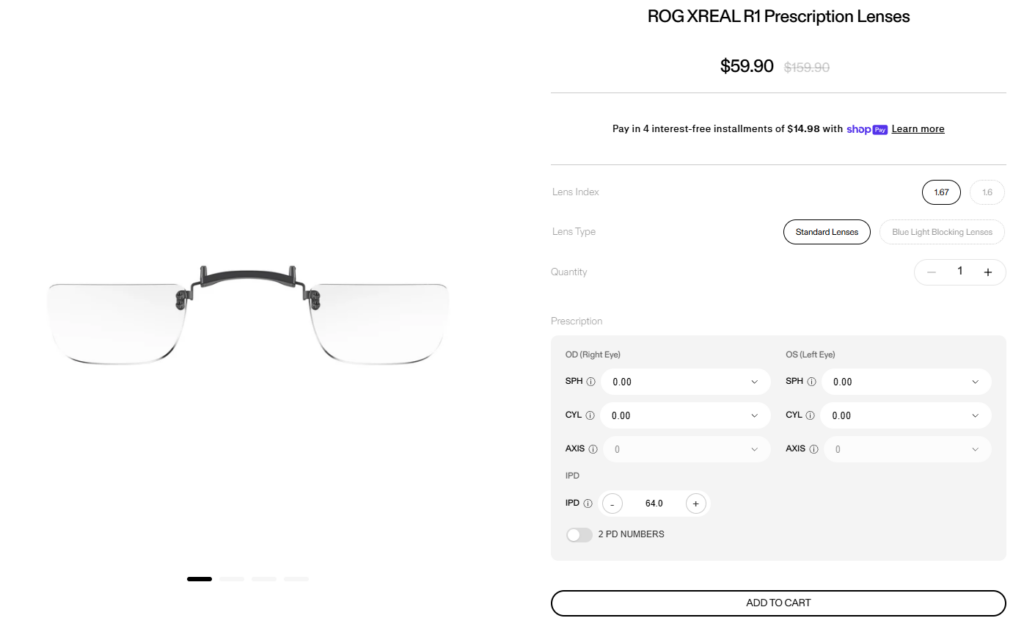
At 90g, the glasses are lightweight, and their soft rubber nose pads allow them to be worn over regular eyeglasses. However, doing so naturally adds the weight of the glasses underneath and can also cause the fit to shift. For anyone who wants to use them comfortably while out and about, prescription insert lenses would be highly recommended.
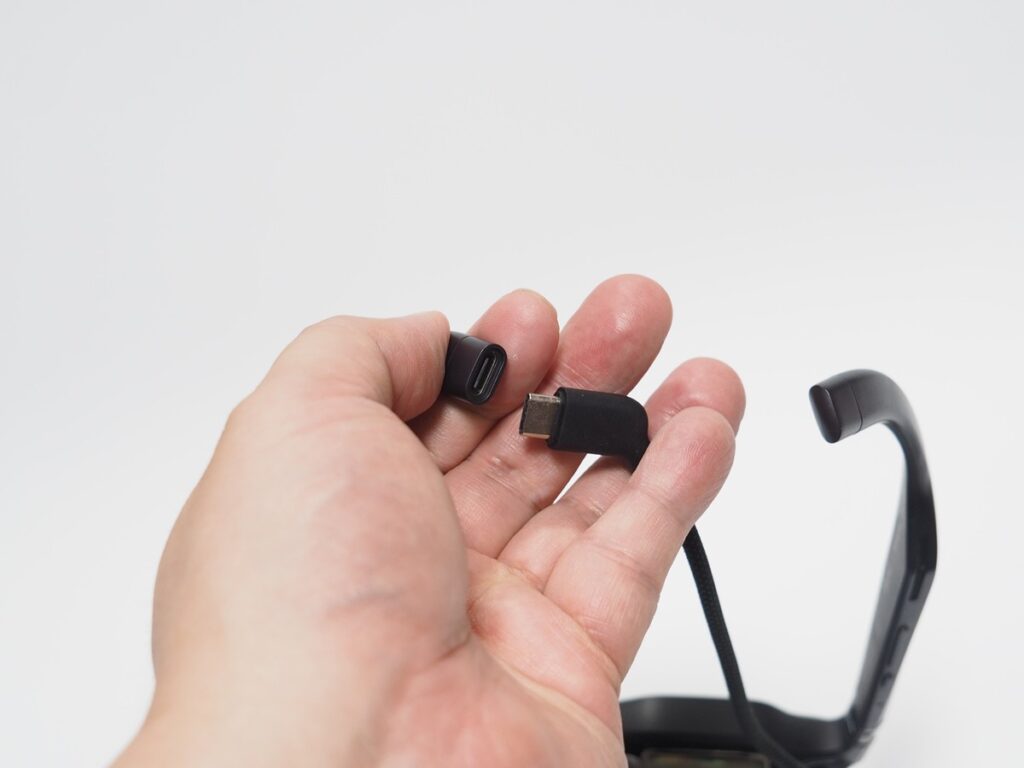
With a device that supports DP Alt Mode, video can be output through a single USB Type-C cable.
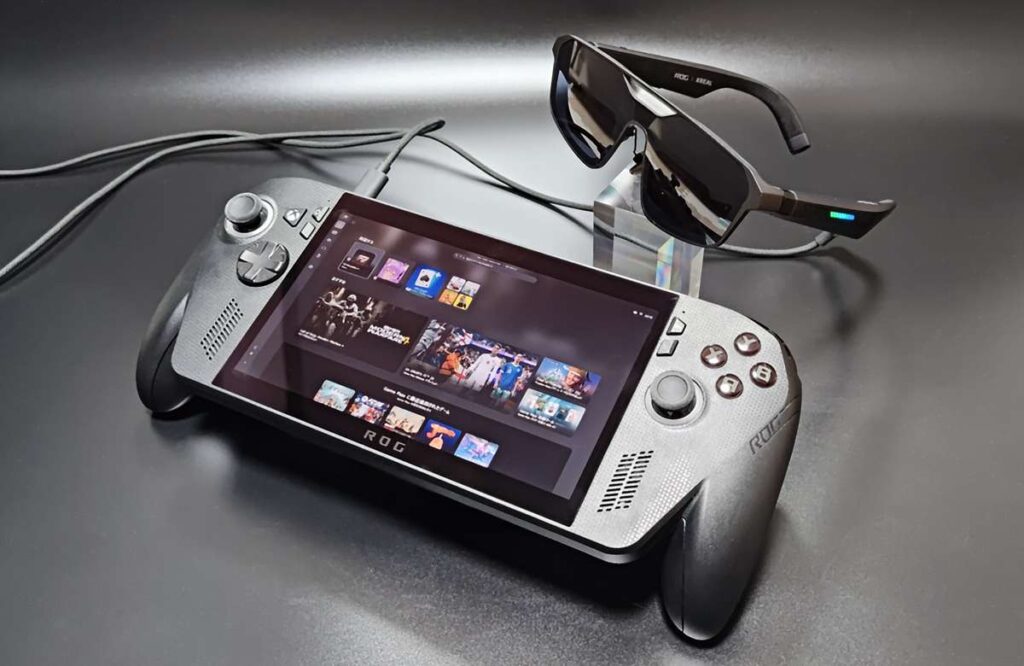
A USB Type-C port is located at the end of the left temple tip. Connect the angled proprietary cable to this port, then plug the other end into a smartphone or a handheld gaming PC such as the ROG Xbox Ally. Naturally, the device-side USB port must support external video output, such as DP Alt Mode (DisplayPort Alternate Mode).
For example, on the ROG Phone 8 Pro I use regularly, the bottom USB Type-C port when the phone is held vertically does not support DP Alt Mode. Video output was therefore available only through the DP Alt Mode-compatible port on the side of the device.
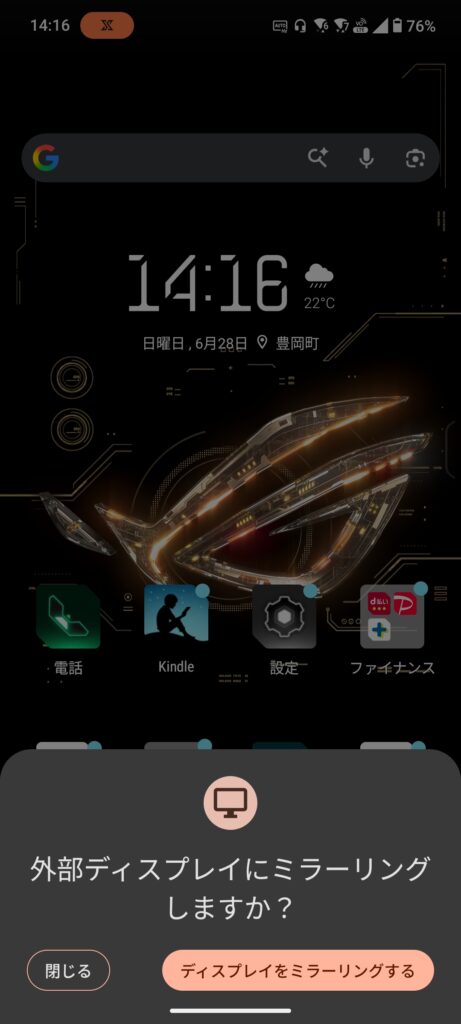
When connecting to a smartphone via USB Type-C, a pop-up like the one shown below appears. Select “Mirror display” to output the video to the glasses.
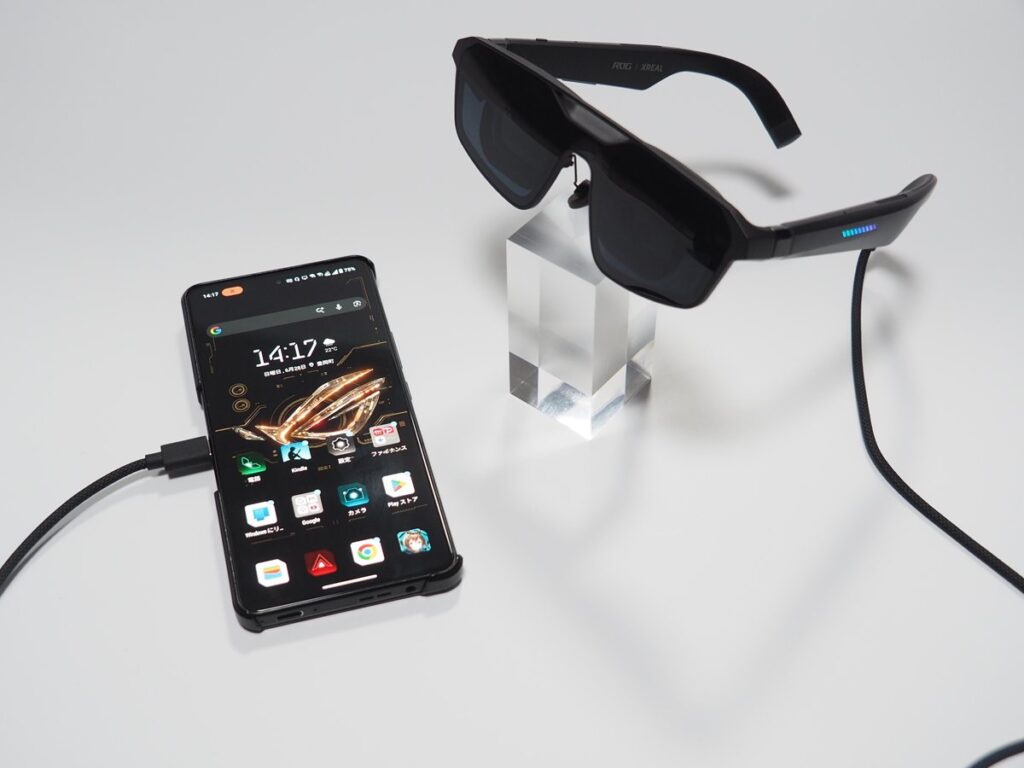
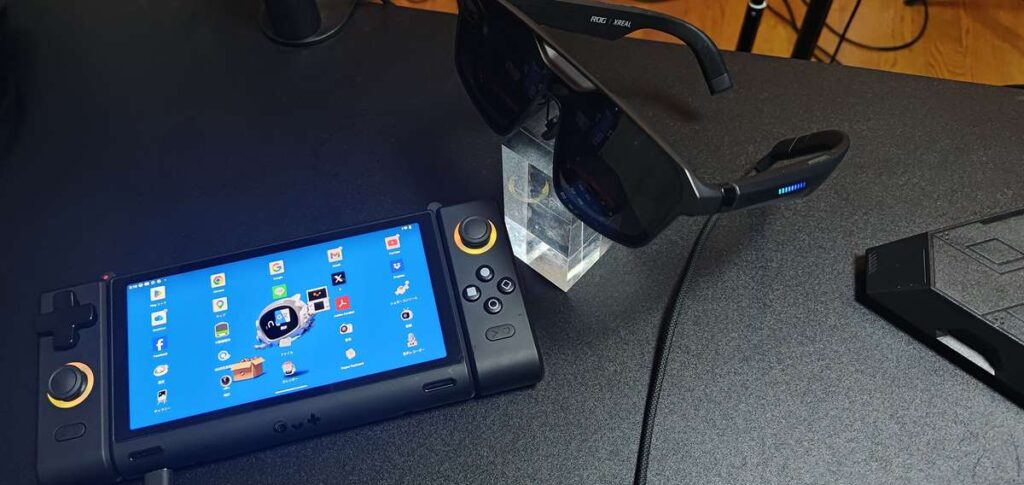
Naturally, the ROG XREAL R1 can also be used with devices other than smartphones, as long as they support video output over USB Type-C. The ROG Xbox Ally X has one USB4 port and one USB 3.2 Gen 2 Type-C port on the top, and video output worked from either one. I was also able to enjoy video output from the Android gaming handheld ONESUGAR SUGAR1 via a USB Type-C connection.
A wide range of settings can be adjusted using only the buttons built into the glasses.
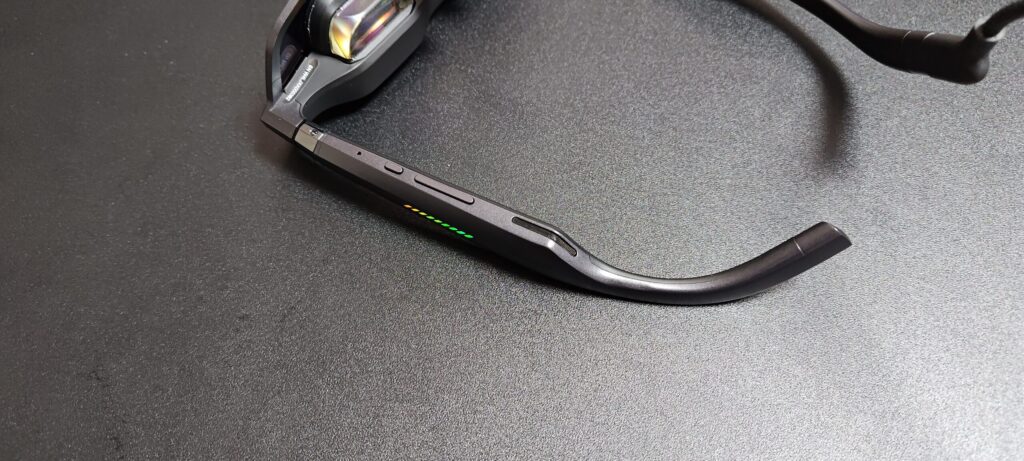
On the right temple, there is a small Quick Button near the top. On the lower section, the glasses feature +/– buttons for adjusting settings—similar to a smartphone’s volume controls—along with a small Menu Button.
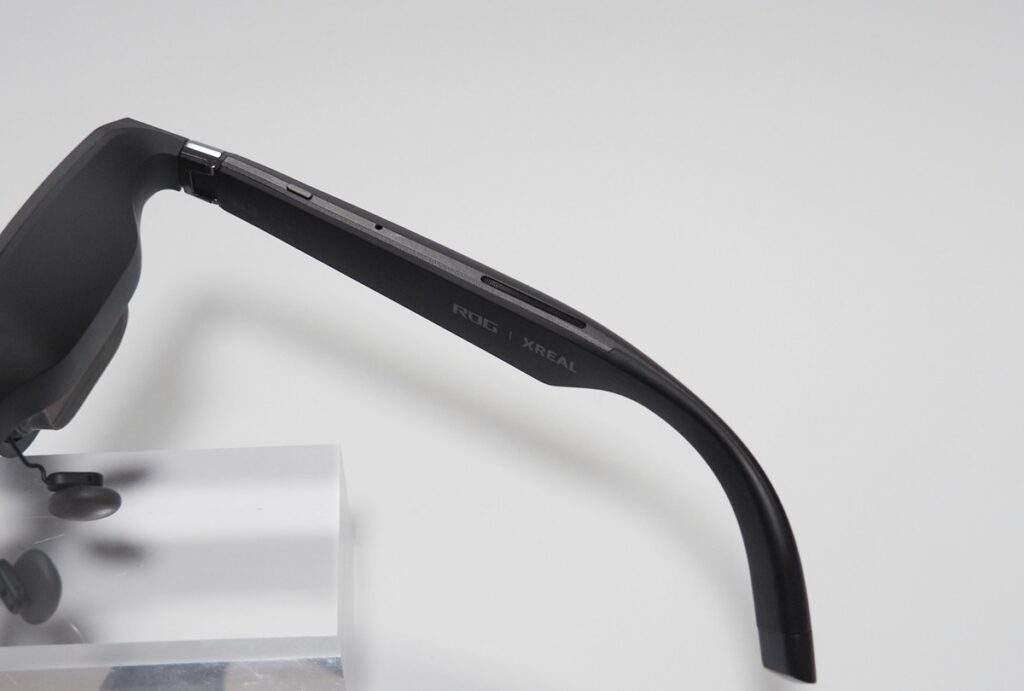
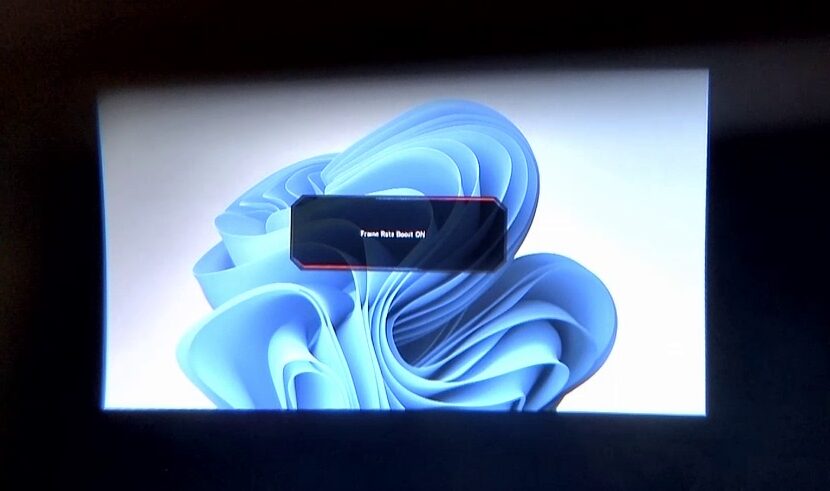
A single press of the Quick Button activates Transparency Mode, turning off the display so you can see your surroundings. Double-pressing it brings up the OSD menu, while pressing and holding it enables Frame Rate Boost.
A single press of the Menu Button switches between Follow Mode and Spatial Anchor Mode. Double-pressing it opens the main menu, while pressing and holding it recenters and fixes the screen in place.
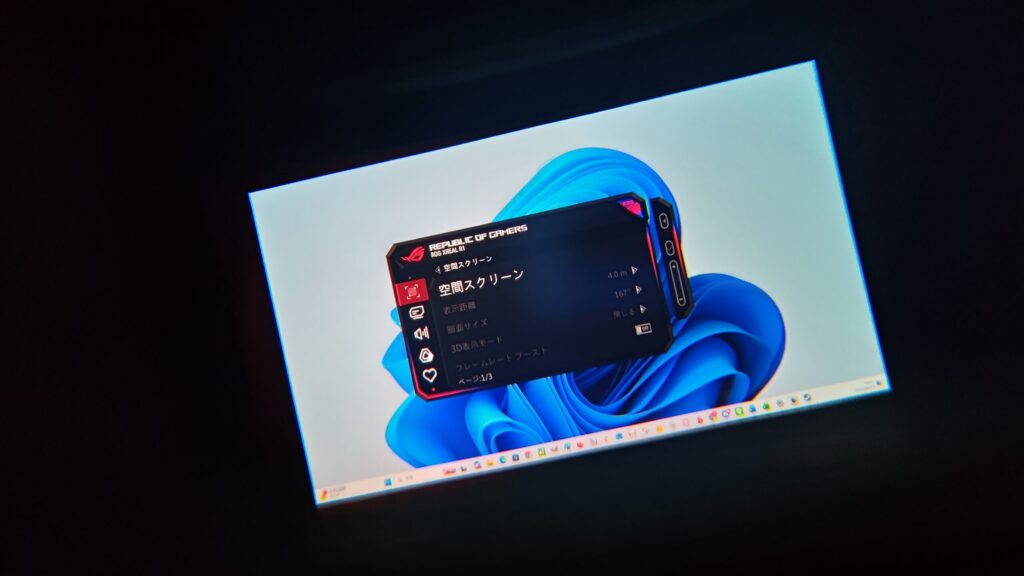
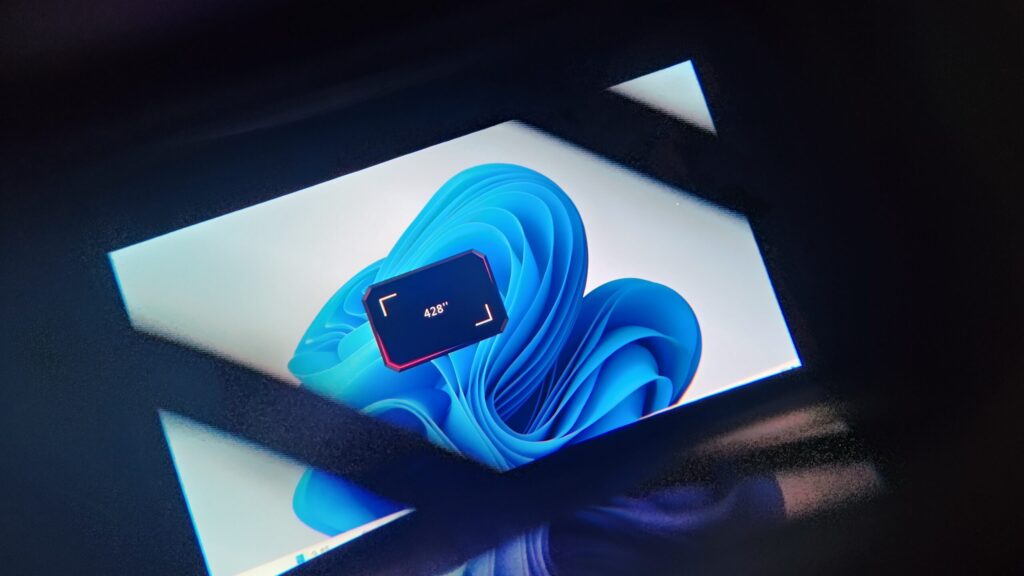
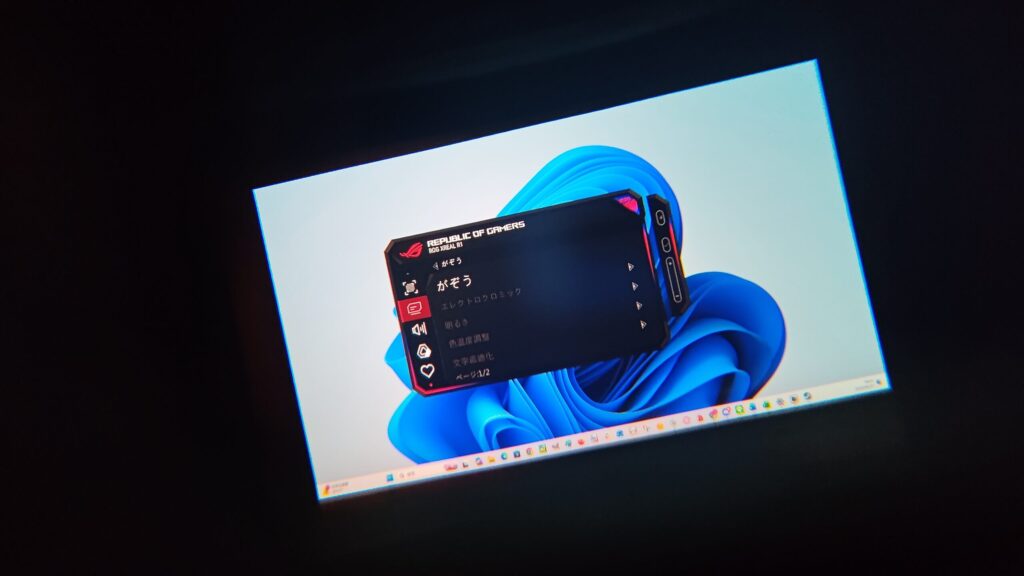
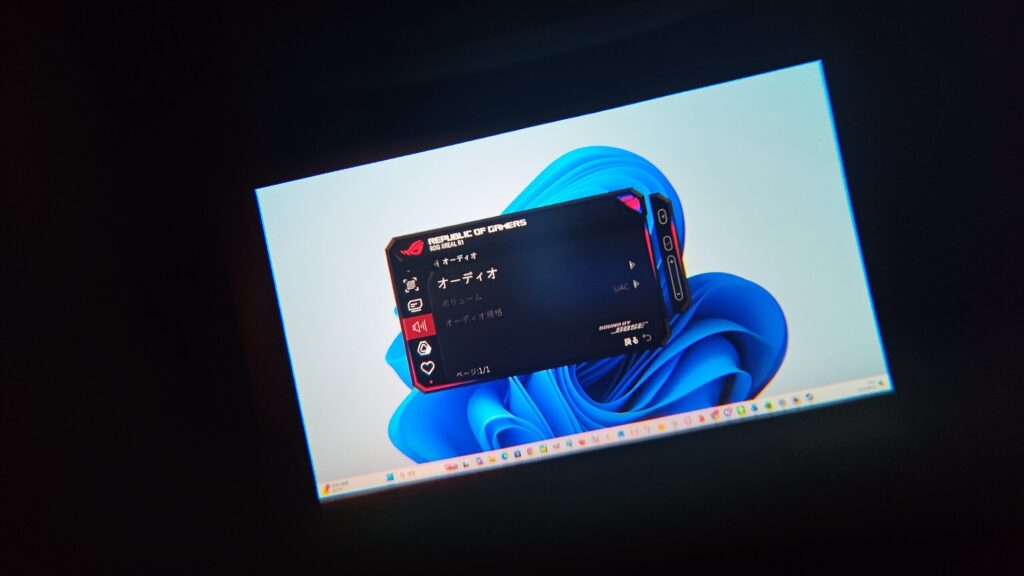
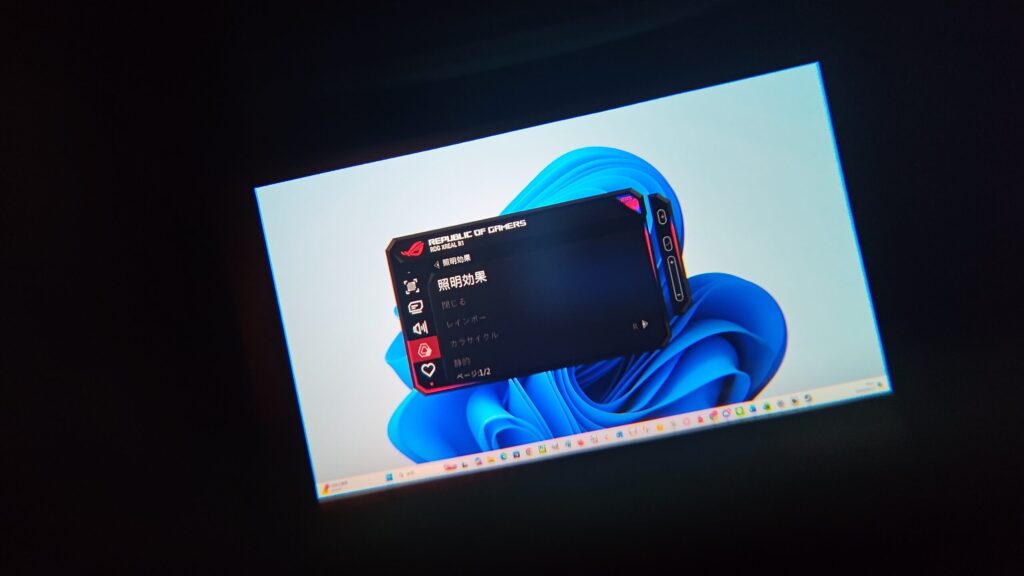
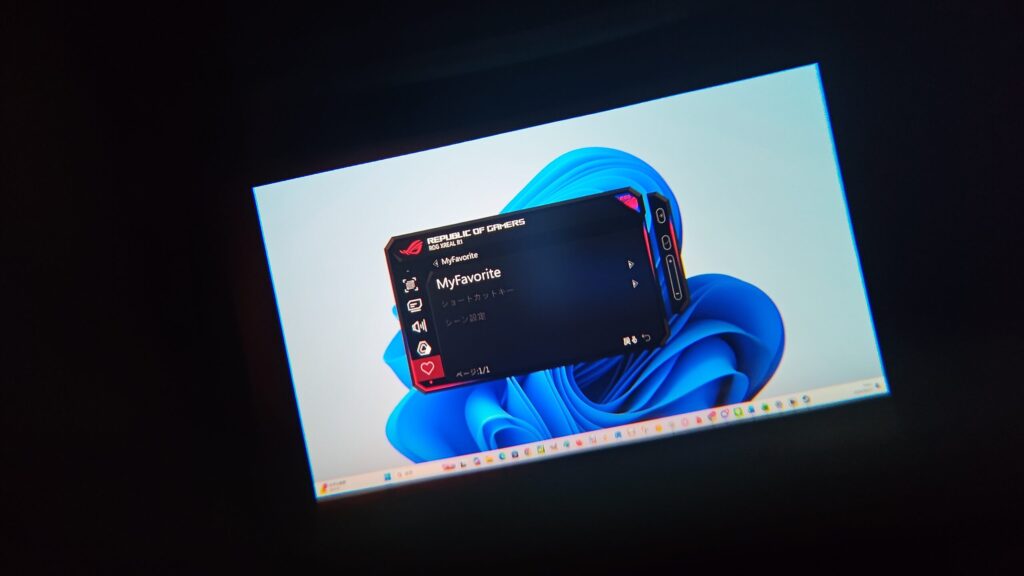
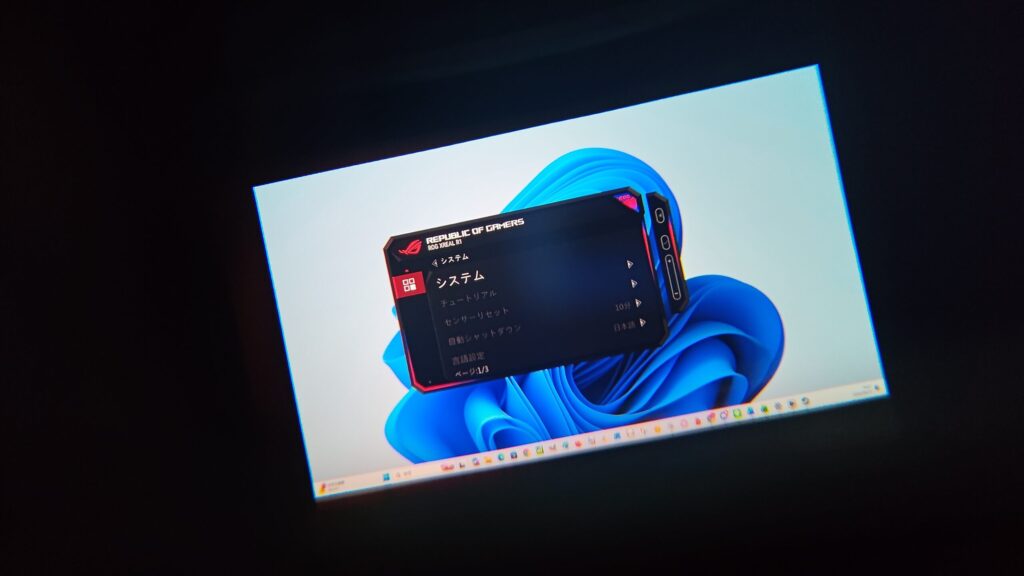
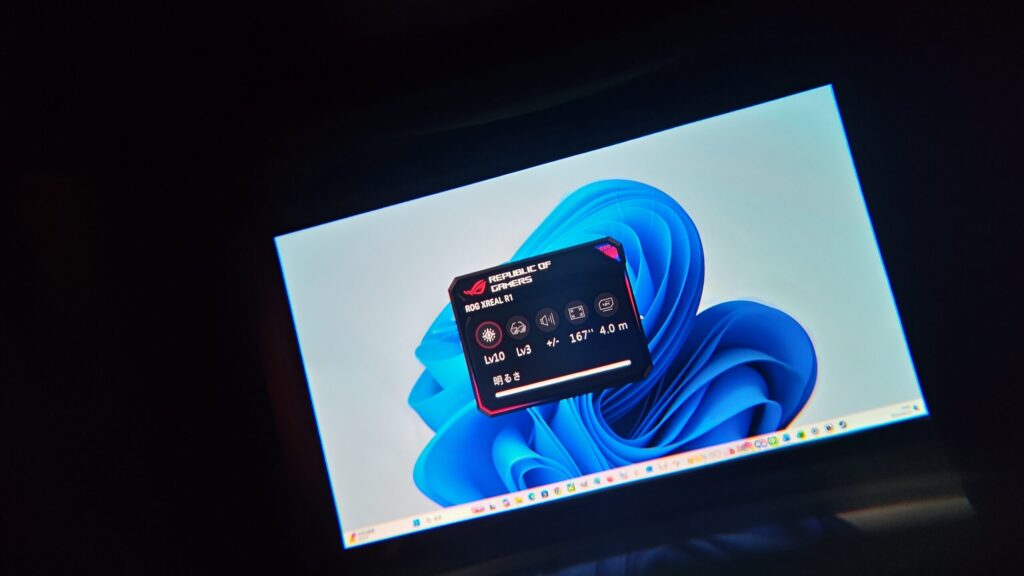
A single press of the +/– buttons opens the Quick Menu. These buttons are also used to navigate menu items and adjust values in both the Quick Menu and the main menu.
※Note: The video commentary is in Japanese.
The ROG Control Dock allows you to connect the glasses to gaming consoles and PCs.
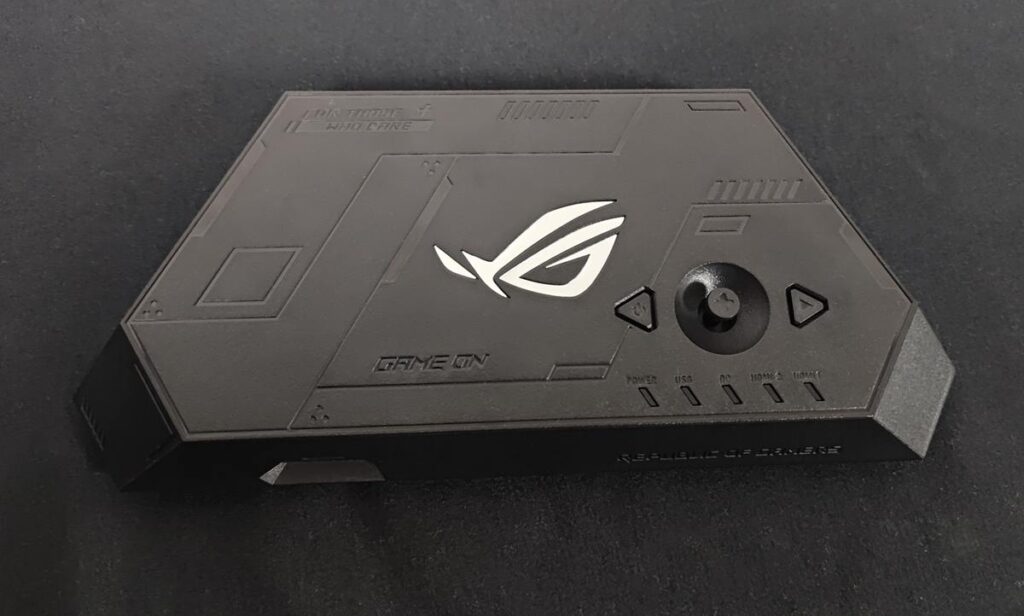
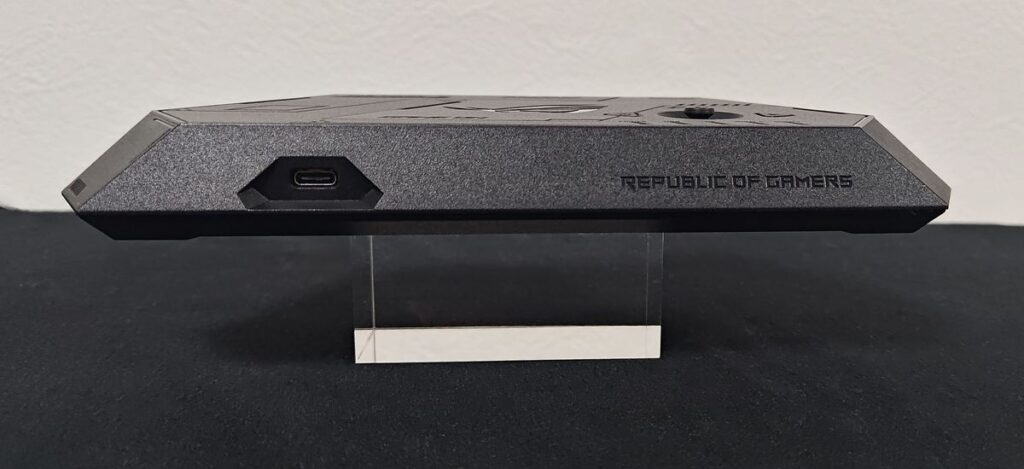
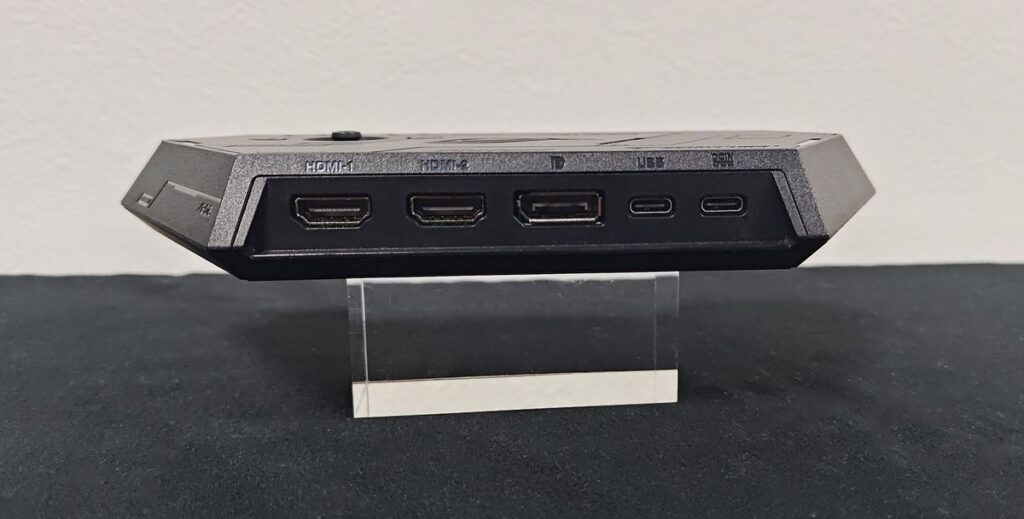
In addition, the package includes the “ROG Control Dock,” which allows you to connect multiple devices such as PCs and gaming consoles via DisplayPort and HDMI. The front of the “ROG Control Dock” features a USB Type-C port for connecting the AR glasses, while the rear is equipped with two USB Type-C ports for power delivery and data transfer, two HDMI input ports, and one DisplayPort.
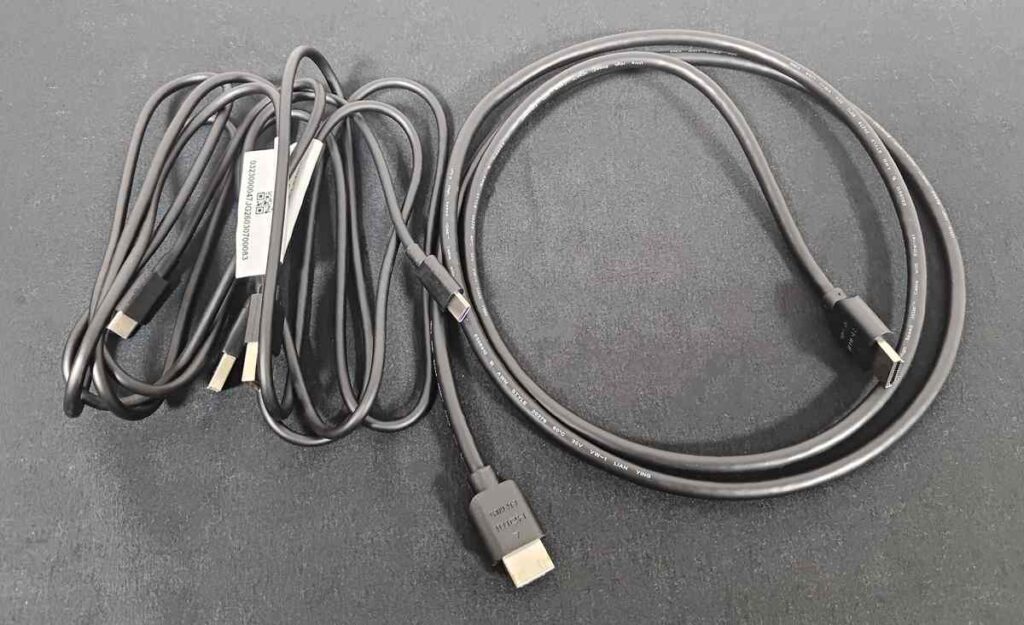
The package includes two USB-A to USB-C cables and one HDMI cable. This may be due to the fact that this was a demo unit, but when connected to a PC via HDMI and USB cables, it generally operated using power supplied from the PC. However, the display occasionally disappeared unexpectedly, making the connection unstable. In such cases, it is necessary to power the dock using a standard AC adapter.
However, since USB Type-C AC adapters have become the standard for smartphone chargers in recent years, you may need to prepare a third-party AC adapter. This is something to keep in mind.
The glasses alone can only be used with devices that support video output via USB Type-C. However, by using the “ROG Control Dock,” you can connect up to three gaming consoles or PCs. We were unable to test it with the Xbox Series X|S because the editorial team does not have one available, but ASUS officially promotes compatibility with the Xbox Series X|S. We were able to confirm that it works with both the Nintendo Switch 2 and PlayStation 5.
As an aside, if you want to connect a smartphone while the glasses are still connected to the “ROG Control Dock,” you can use a hub that enables video output from the smartphone via HDMI, or prepare a conversion cable with USB-C on one end and DisplayPort on the other.
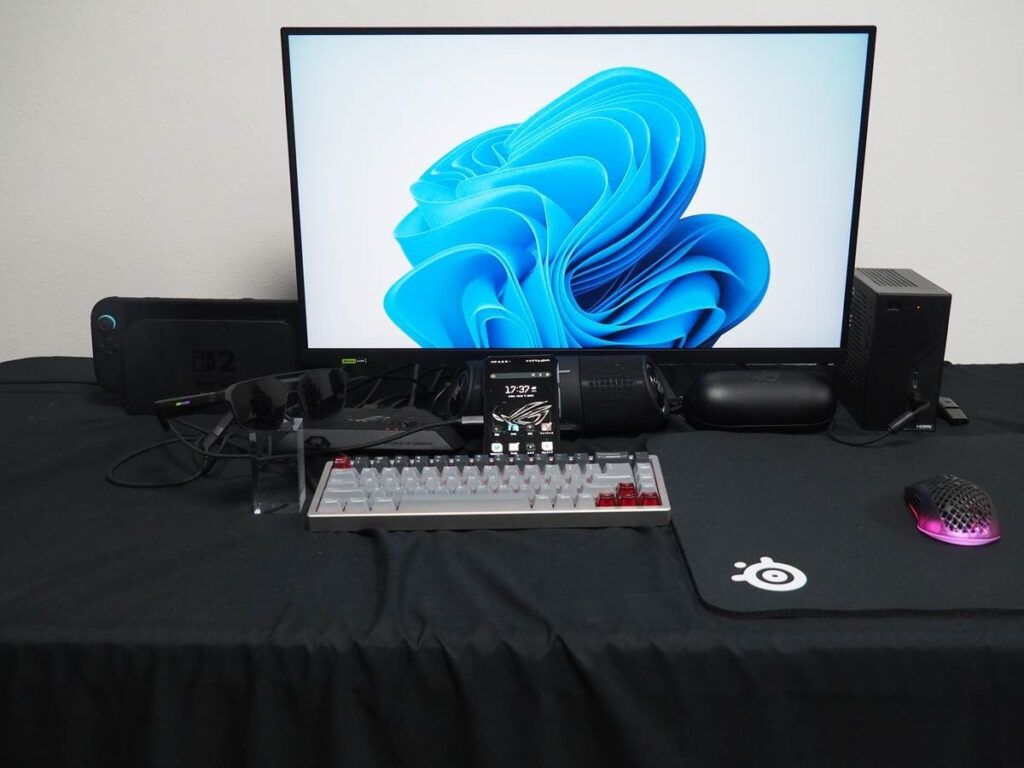
However, the “ROG Control Dock” only has a video output port dedicated to the glasses, and gaming consoles such as the Nintendo Switch 2 do not support multi-display output. As a result, when using a gaming console, the image can only be viewed through the ROG XREAL R1. If you want to display the image on a regular monitor or TV, you will need to reconnect the cables.
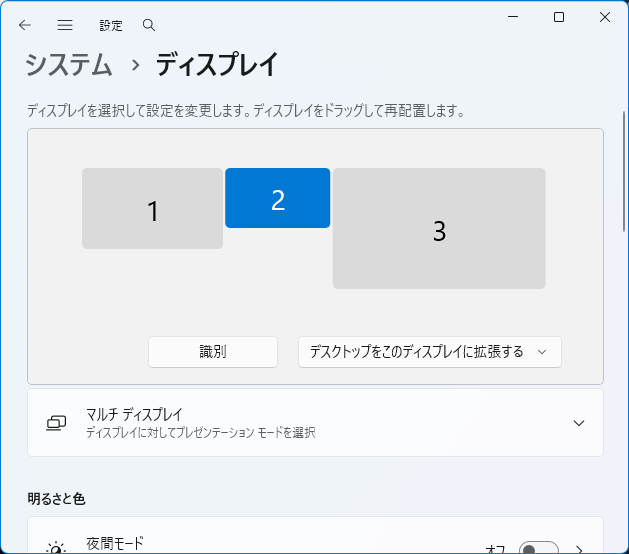
On the other hand, if a PC supports multi-display output, it can display the image on a separate monitor or TV using duplicate or extended display modes in addition to the ROG XREAL R1.
With the ROG Control Dock, you can intuitively adjust settings using the joystick.
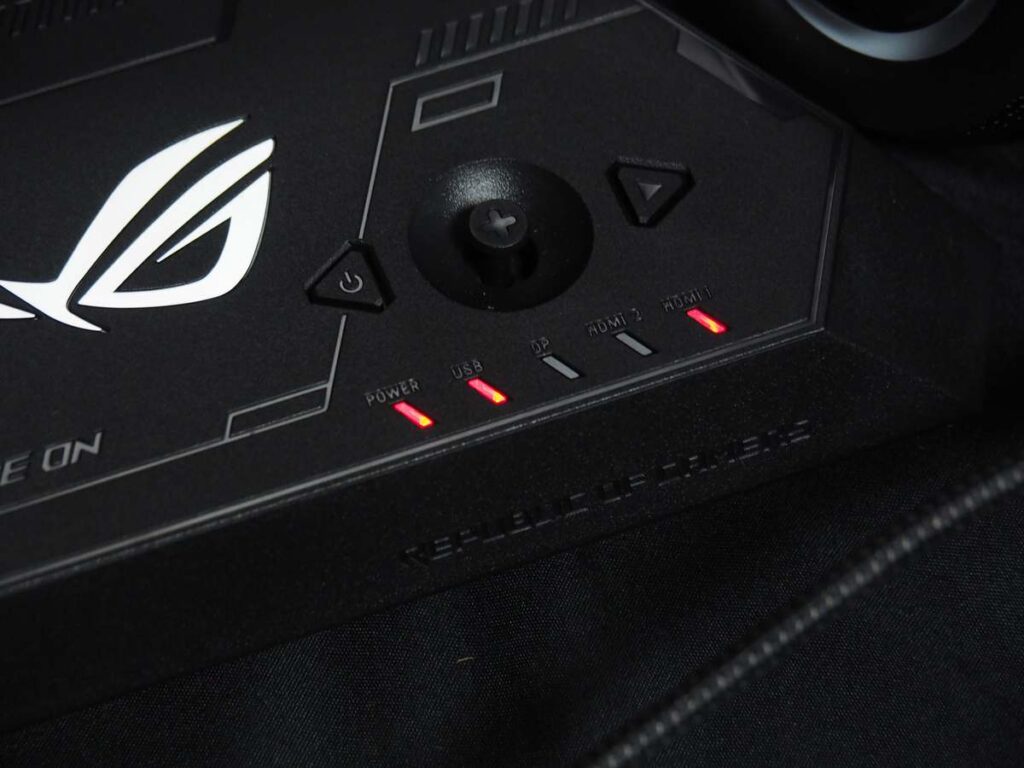
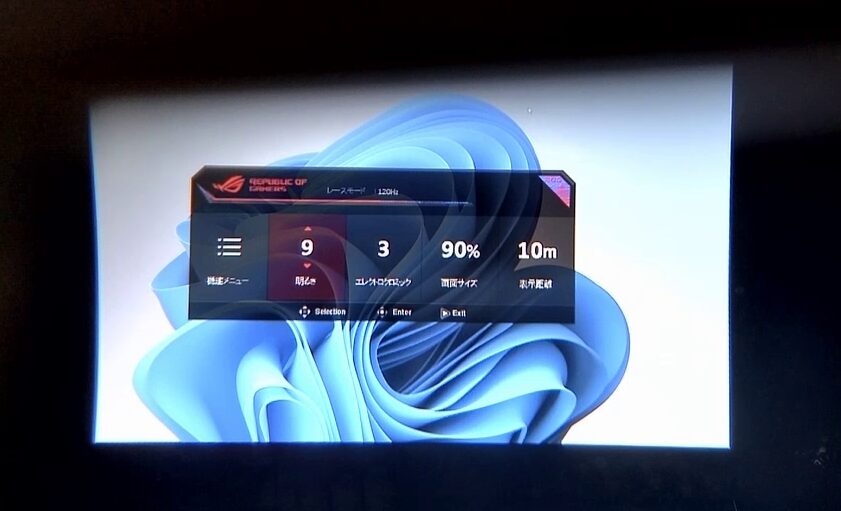
The ROG Control Dock features a joystick and two triangular buttons. The button on the left is the power button, while the button on the right is the exit button. The exit button can be used to close menus and, as described later, turn Frame Rate Boost on or off. The joystick is also clickable, and pressing it brings up the Dock Quick Menu.
Although the Dock Quick Menu has a different UI design from the Quick Menu displayed when using the glasses alone, the available settings are the same. It allows you to adjust options such as brightness, ambient transparency, screen size, and viewing distance.
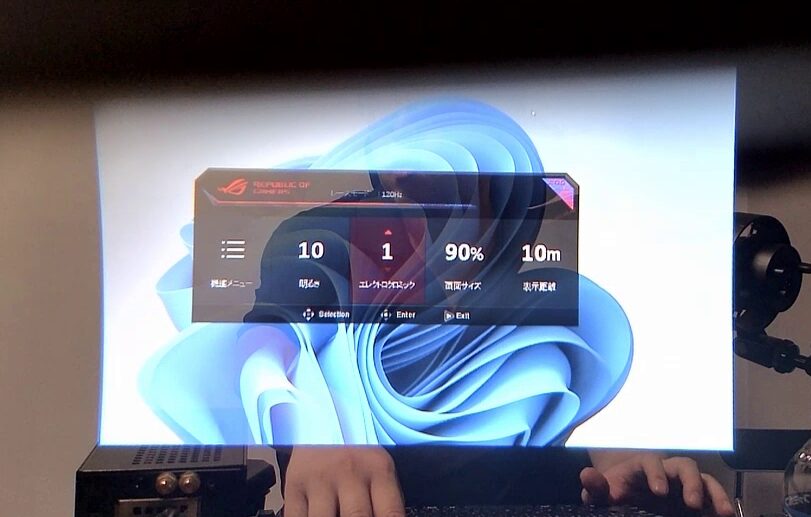
Selecting the “Settings Menu” on the left side of the Dock Quick Menu, or double-clicking the joystick, opens the Dock Main Menu. The UI is different from the one available when using the glasses alone, and it also provides features found on ROG gaming monitors, such as “GamePlus,” which can display an FPS counter, crosshair, timer, and other gaming overlays, as well as “GameVisual,” which allows you to select optimized image presets based on game genres such as racing or FPS titles.
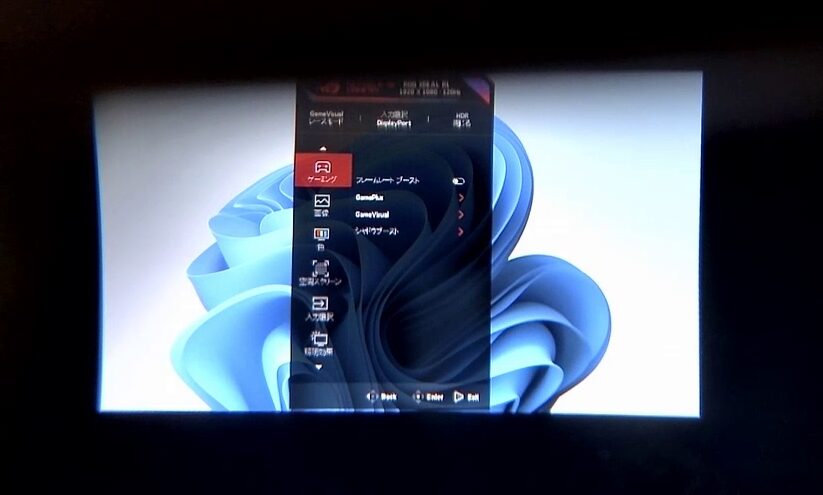
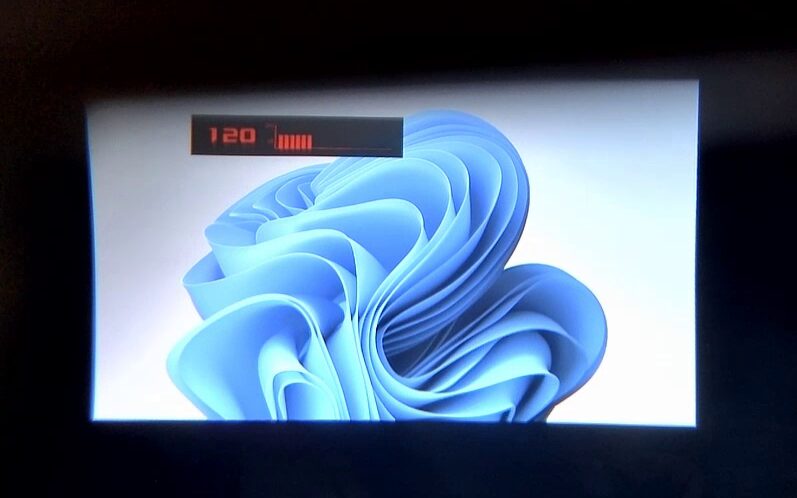

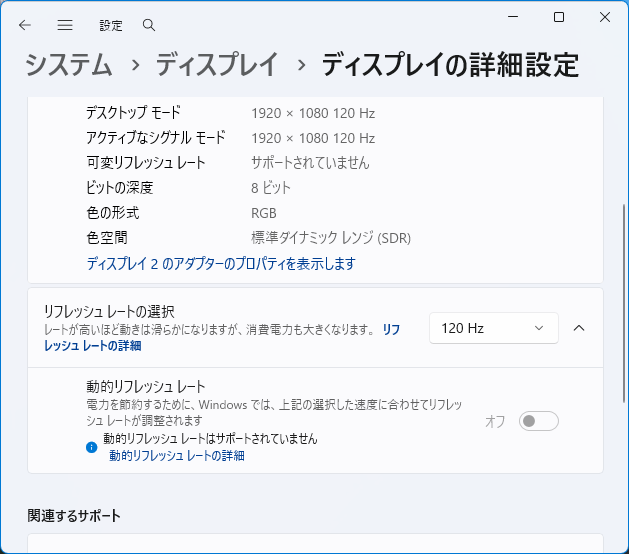
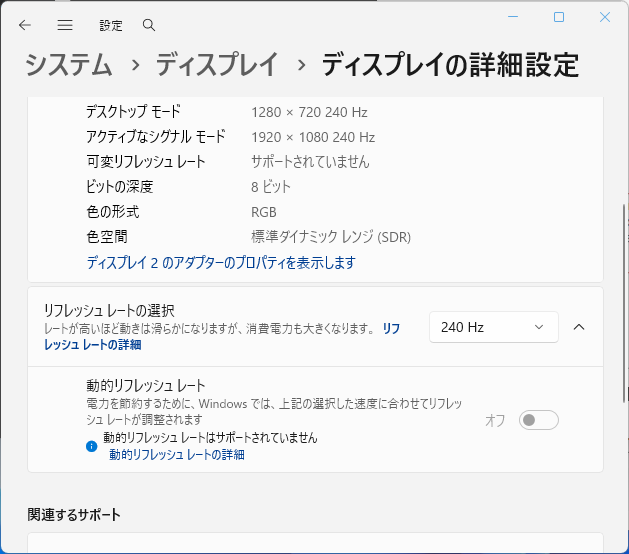
The “ROG XREAL R1” normally operates at a refresh rate of 60Hz or similar settings, but enabling Frame Rate Boost increases the refresh rate up to 240Hz at 1920×1080 resolution.
Enjoy gaming with an ultra-wide display.
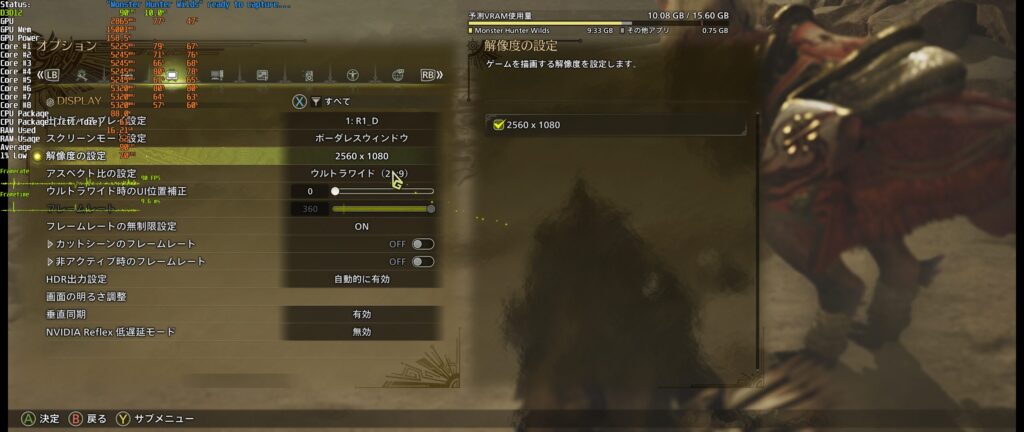
As mentioned earlier, the display aspect ratio can be adjusted, allowing support for ultra-wide displays. The maximum setting is 32:9, and it can also display 21:9, which is supported by games such as “Monster Hunter Wilds.” We tested both “Arknights: Endfield” and “Monster Hunter Wilds” with the display set to 21:9.
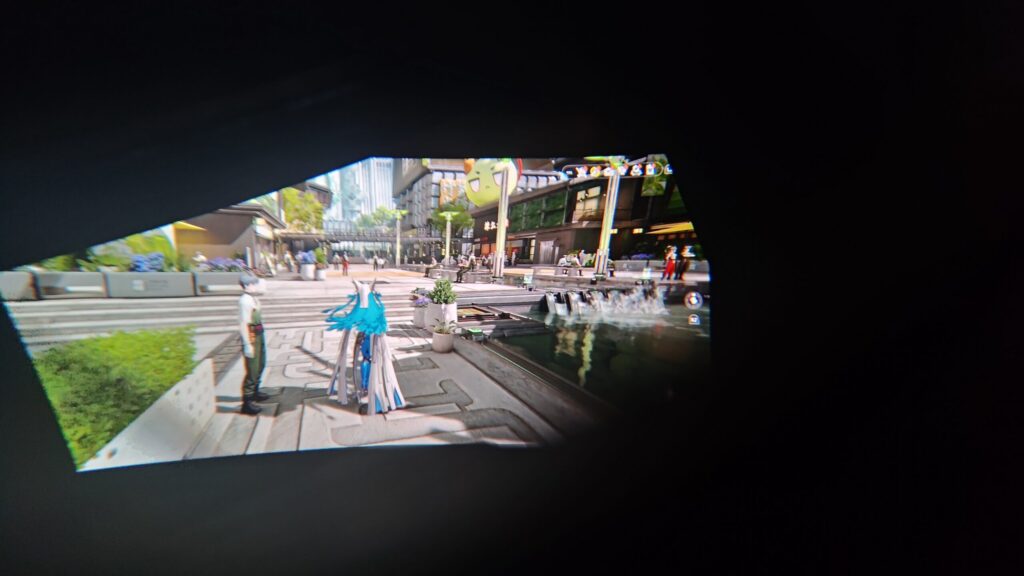
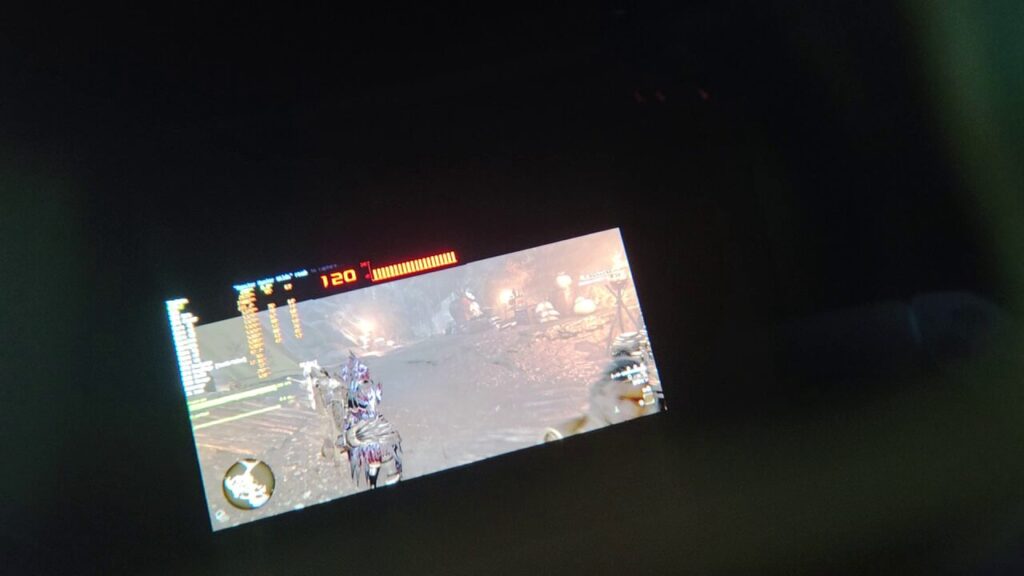


Incidentally, the “ROG XREAL R1” also features an automatic transparency adjustment function that lowers the surrounding transparency level when the display moves out of your field of view. Of course, this function is only available when using Fixed Mode, as the screen follows your head movement in Follow Mode.
This feature is useful when playing games while looking straight at the screen, as turning your gaze away to grab a drink or turning your head when someone suddenly talks to you automatically makes your surroundings visible. The following video shows how the automatic transparency function works.
2D content transformed into 3D!
The “ROG XREAL R1” features a 3D display function that supports both Half Side-by-Side (SBS) and Full Side-by-Side (SBS) formats for 3D content. There are various 3D stereoscopic videos available on YouTube, including footage of vast natural landscapes and gameplay videos. When viewing such content, the two separate images merge into a single 3D image, allowing you to enjoy a stereoscopic viewing experience.

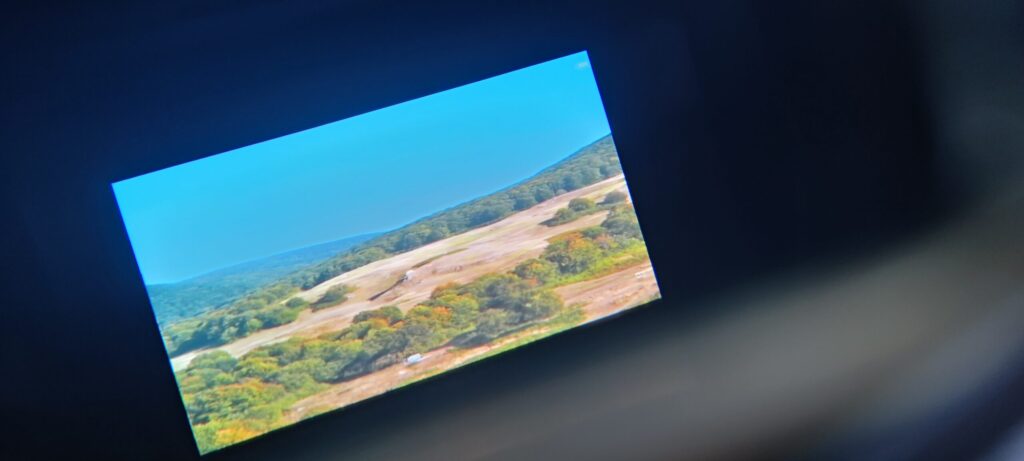
The “Instant 3D” feature is also included, allowing 2D images to be converted into 3D. This makes it possible to enjoy 2D games and videos as stereoscopic 3D content. We tested the feature with several games and videos, and found that it was particularly effective in scenes with a strong sense of depth.
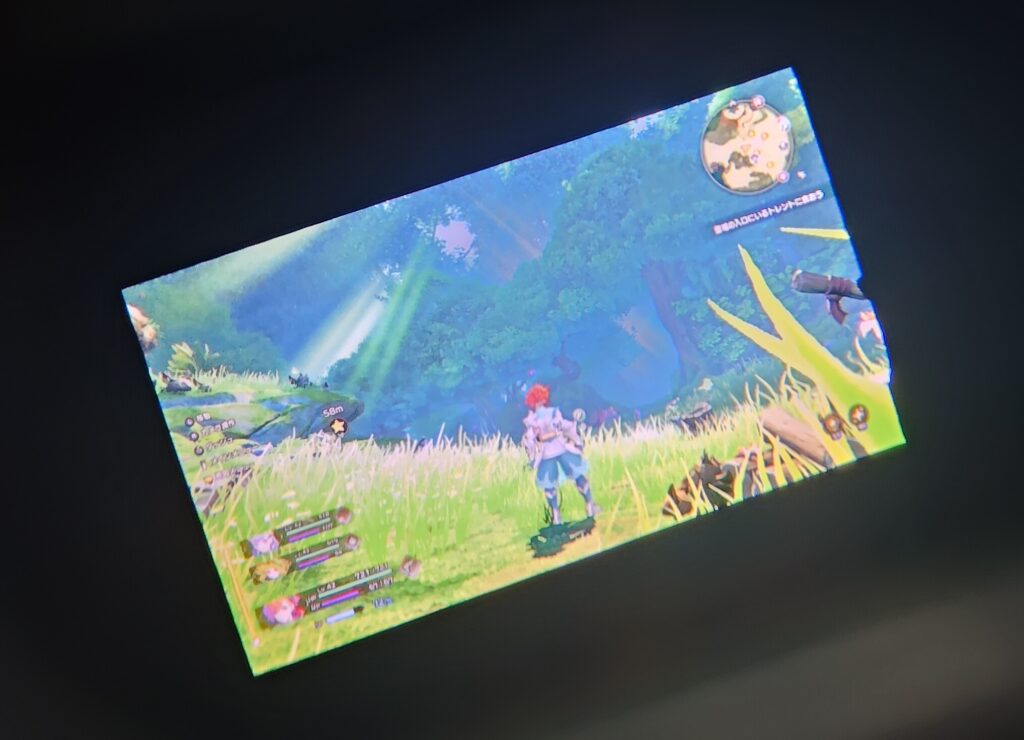
For example, in a forest map, trees and characters appeared with a three-dimensional effect, while UI elements such as the health gauge looked as if they were floating in front of the screen. Unfortunately, the 3D effect can only be experienced when viewed through both eyes, so the stereoscopic visuals cannot be accurately represented in images within this article.
© SQUARE ENIX
For this feature, we recommend trying it out on an actual demo unit at future events or retail stores where it may be showcased. However, since the feature converts 2D content into 3D rather than using visuals originally created in 3D, some imperfections are noticeable. For example, parts of a character below the neck may appear misaligned or unnaturally protrude from the image.
In addition, when scenes feature intense lighting effects, such as during live performances, screen tearing can occasionally occur. While these issues exist, the feature is ultimately an additional function, and users who enjoy converting compatible games and videos into 3D may find it a worthwhile experience.
The ultimate gaming glasses that let you enjoy a large-screen gaming experience anywhere.
The “ROG XREAL R1” supports up to 240Hz, while competing products are limited to 120Hz, allowing games to be played with smoother visuals. In actual testing, we were able to play “Mecha BREAK” with smooth gameplay at over 120fps.
© 2026 Amazing Seasun Games. All rights reserved.
The biggest advantage of gaming glasses is that they allow you to create an environment where you can enjoy games and videos on a large screen while taking up very little space. A conventional ultra-wide gaming monitor provides a highly immersive experience because you can physically feel the sheer size of the display and its substantial presence when using it.
However, since a virtual display is ultimately just that — virtual — displaying content in an ultra-wide format does not provide the same impact as actually playing games on a real ultra-wide monitor. That said, considering the limited living space in many Japanese homes, not every room can accommodate an ultra-wide display, and placing two or three monitors is often unrealistic.
For users facing these limitations, being able to enjoy ultra-wide gaming on the “ROG XREAL R1,” even as a virtual display, is a significant advantage. Titles such as “Monster Hunter Wilds” and “Arknights: Endfield” can be played in a wide-screen format, and the position of the virtual display can be adjusted freely. Although you are still limited by the cable length, you can enjoy games and videos while lying down or relaxing on a sofa in a comfortable position.
The device is also valuable during long trips on trains such as the Shinkansen or on airplanes, where using a large monitor is obviously not possible. By connecting it to a smartphone or other compatible device, you can enjoy games and videos on a large virtual screen wherever you are. While the price exceeds 140,000 yen, it is a reasonable cost when considering that it combines a 240Hz ultra-wide gaming display experience with additional features such as 3D support.
For those who want to enjoy large-screen, smooth gaming even in a small room, or those who want to watch anime and YouTube videos in 3D while lying down, the “ROG XREAL R1” is an interesting option to consider as an upgrade to their current entertainment setup.